
GPT Image 2.6 adds animated GIF output. Describe the motion, pick a frame count and a frame duration, and you get a looping animation back. You don't have to generate frames one by one or open an editing app.
One prompt, one GIF: 8 frames at 150 ms, Standard quality, 4 credits.
We generated every animation in this tutorial ourselves, and we show the ones that didn't work too. By the end you'll know how to pair frame count with timing, how to write a prompt that loops, and which kinds of motion the model still struggles with.
What GIF output can and can't do
Get the limits straight first so you don't fight the settings:
| Item | Details |
|---|---|
| Models | GPT Image 2.6 Flare, GPT Image 2.6 Sunburst |
| Mode | Text to Image only; no reference images |
| Frame size | Always 512×512 square; no ratio or resolution to pick |
| Frame count | 4, 6, 8, 12 or 16 |
| Frame duration | 100, 150, 200, 300 or 500 ms |
| Background | GIF has no transparency |
| Quality | Standard, Enhanced, Fine |
Credits depend on frame count and quality:
| Frames | Standard | Enhanced | Fine |
|---|---|---|---|
| 4 / 6 / 8 | 4 | 6 | 7 |
| 12 | 6 | 10 | 12 |
| 16 | 9 | 15 | 18 |
Up to 8 frames all cost the same, so 8 frames is the sensible default. Every example here was made with Flare at Standard quality, and each came back in about 10–20 seconds.
Step 1: Switch the generator to GIF
- Open the GPT Image 2.6 page. GPT Image 2.6 Flare is already selected.
- Stay in Text to Image mode.
- Set Output format to GIF (animated).
- Choose the frame count and frame duration. The generator shows how long one loop takes (frames × duration).
- Start at Standard quality and only move up once you like the result.
The Planning setting doesn't change the price. Its hint recommends Quick for GIFs; our examples used the default.
Step 2: Write the prompt as a loop
A normal prompt describes one picture. A GIF prompt describes a motion that returns to where it started. In our tests, the prompts that worked all had these five parts:
Looping GIF animation of [the subject, in one sentence].
[Art style], [background], the subject stays centered and the same size in every frame.
Motion: [starting state] → [what happens] → [back to the starting state].
[What never moves].
The last frame matches the first frame so the loop is seamless. No text.- Subject and style: same as any image prompt.
- Fixed position and size: "stays centered and the same size in every frame" stops the subject from drifting or changing size between frames.
- Start and end of the motion: "rises → waves twice → lowers" works far better than just "waving".
- What stays still: for example "the cup and saucer never move", so only the part you want animated moves.
- Matching first and last frame: end with "the last frame matches the first frame so the loop is seamless" to avoid a visible jump each time the GIF restarts.
Example 1: A waving mascot (8 frames × 150 ms)
This is the prompt behind the GIF at the top:
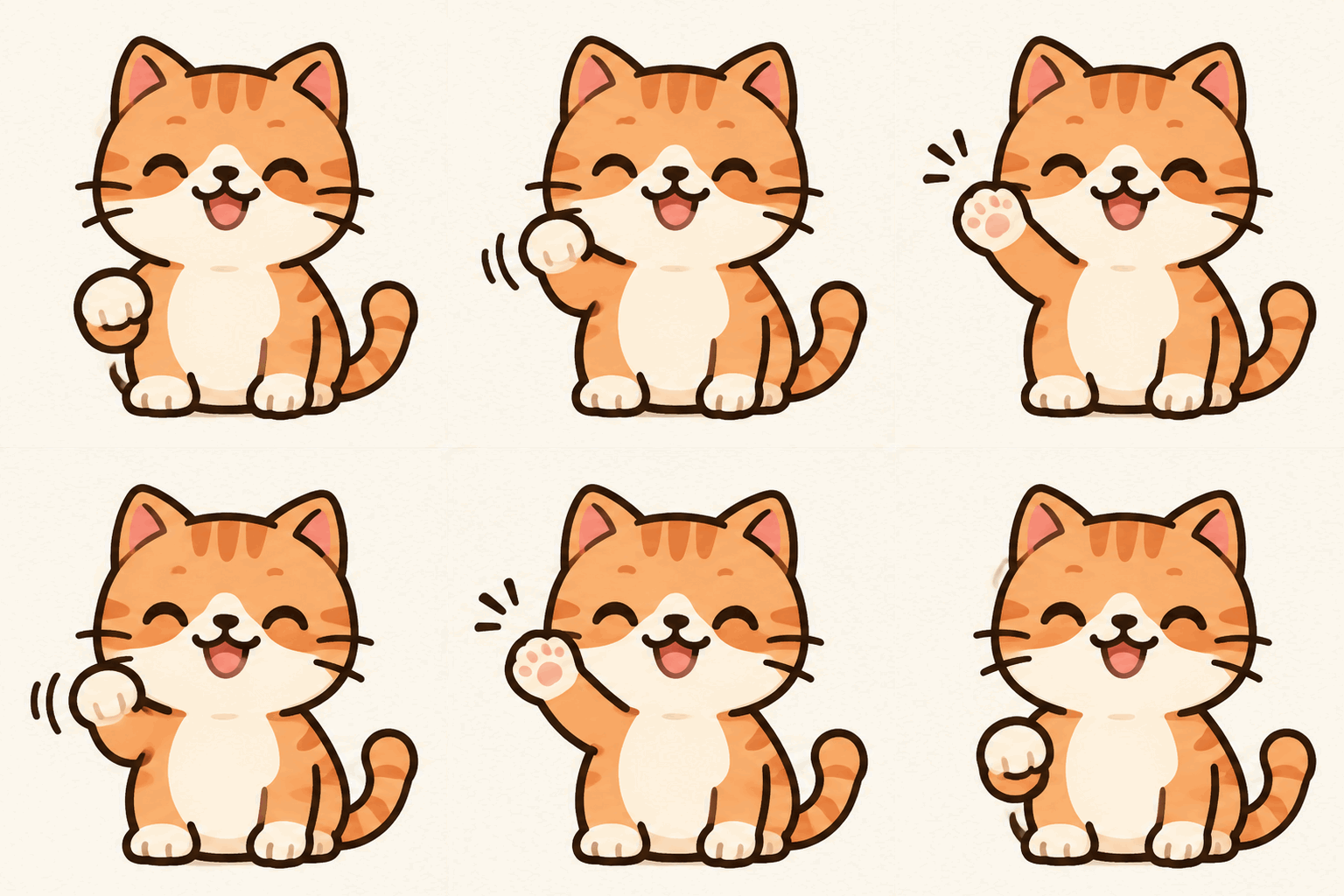
Looping GIF animation of a cute round orange cat mascot waving hello with its right paw.
Flat vector illustration, thick dark outlines, soft cream background, the cat stays centered and the same size in every frame.
Motion: the paw rises, waves left and right twice, then lowers.
The last frame matches the first frame so the loop is seamless. No text.
👉 Try this prompt (then set Output format to GIF, 8 frames, 150 ms)
Split into frames, both the first and the eighth frame have the paw down, with two waves in between. It's exactly the round trip the prompt asked for:

The cat's size, position and style are identical across all 8 frames. The model even added little motion lines next to the paw on its own, which gives it a nice sticker feel.
Example 2: Animate only one part (8 frames × 200 ms)
Many useful GIFs only need a small part to move: steam from a coffee cup, a blinking light, a waving flag. The key is to say what stays still.
Looping GIF animation of a white ceramic coffee cup on a saucer, viewed from the side, with three soft wisps of steam rising and curling upward.
Warm flat illustration, pastel peach background.
The cup and saucer never move; only the steam drifts up and fades.
The last frame matches the first frame so the loop is seamless. No text.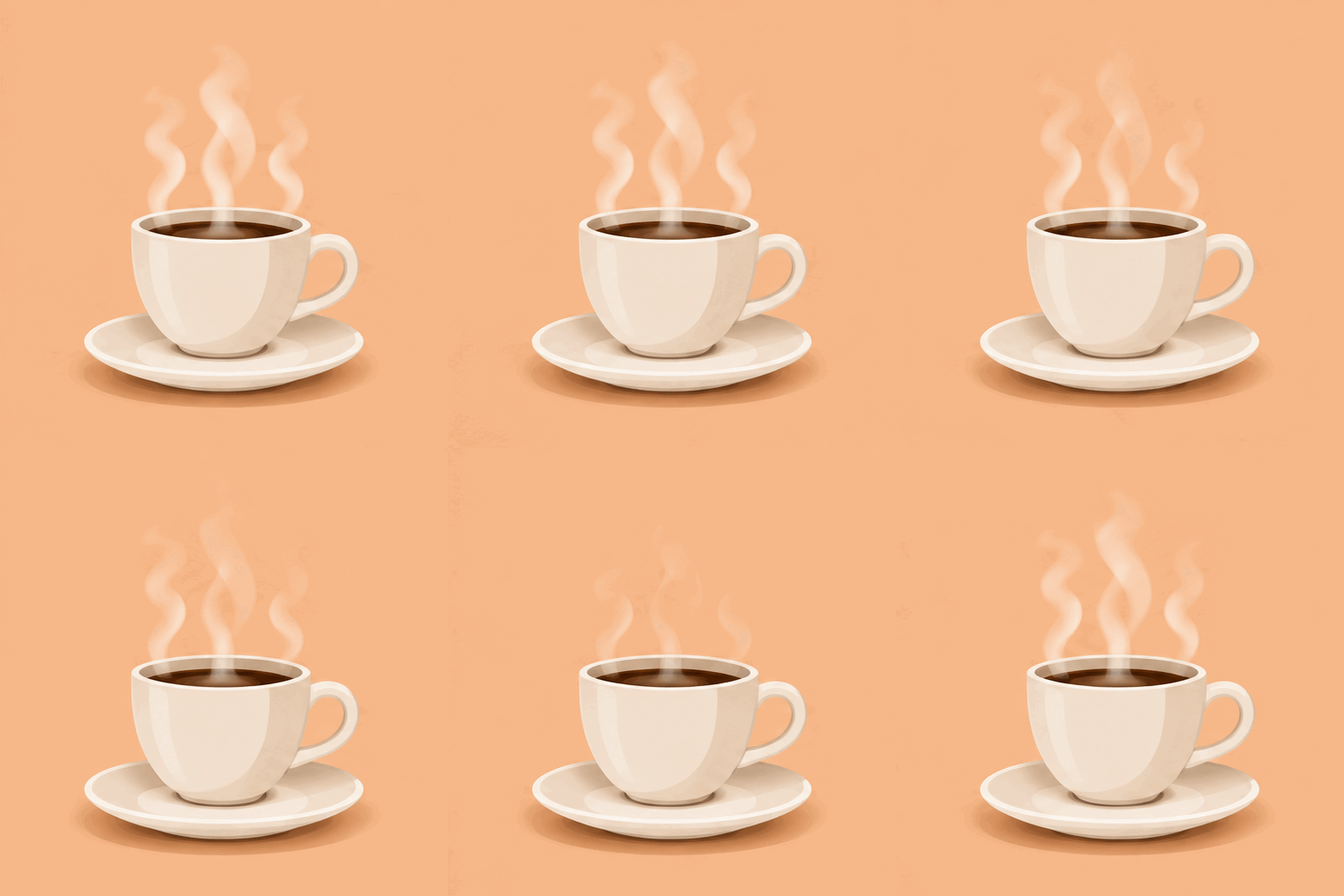
The cup and saucer stay put in all 8 frames while only the steam moves. This kind of GIF works well as a social avatar, a small decoration in a newsletter, or an accent on a menu page.
Example 3: A neon sign with text (6 frames × 300 ms)
With text in a GIF, the risk is that each frame spells the word differently. We tested a neon sign:
Looping GIF animation of a pink neon sign that reads "OPEN" mounted on a dark brick wall at night.
The sign flickers: fully lit, a quick dim flicker, then fully lit again.
The wording "OPEN" stays exactly the same and in the same position in every frame.
The last frame matches the first frame.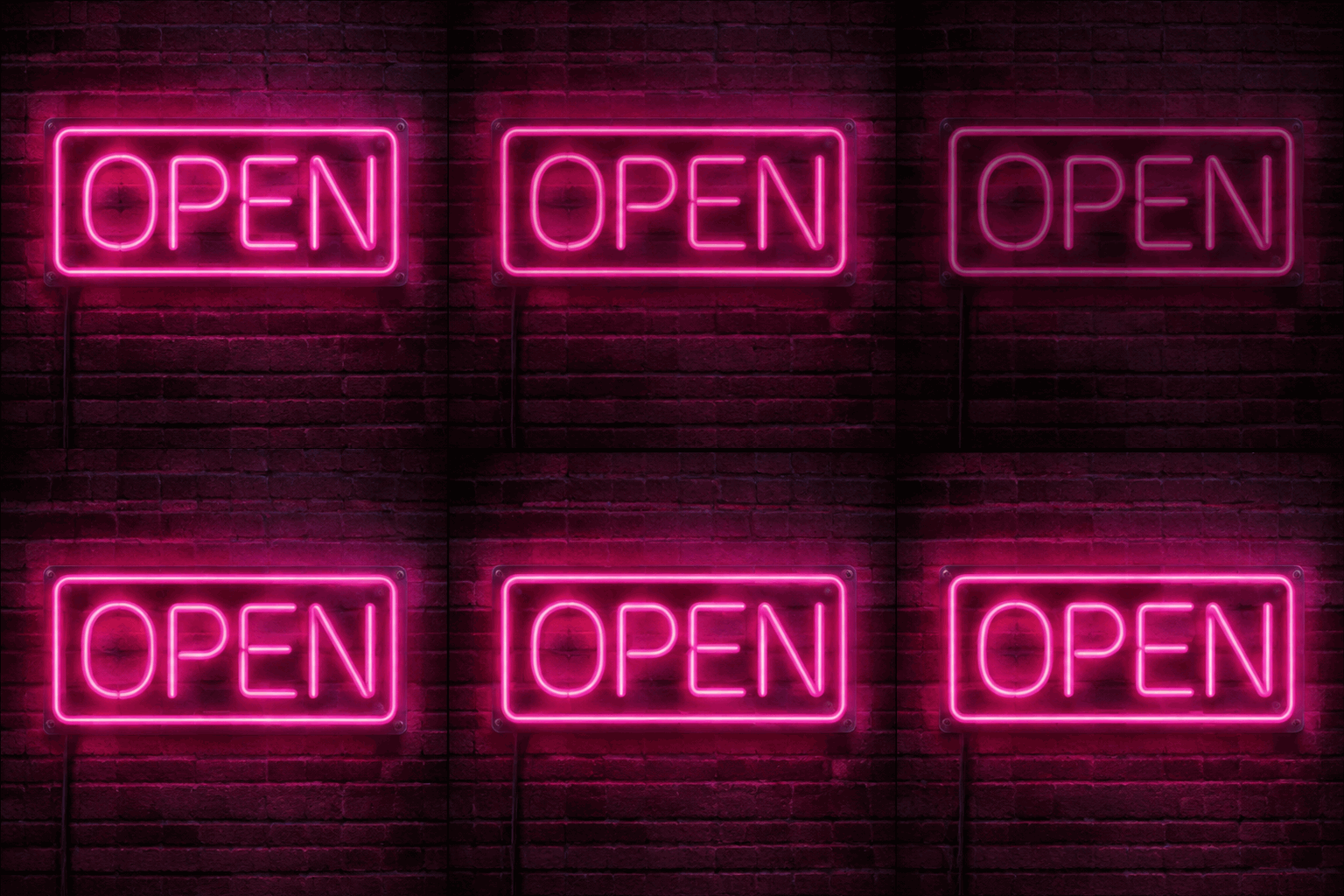
"OPEN" is spelled correctly in all 6 frames and never moves. Frame 3 dims to create the flicker. Flickers look more natural at a slower 300 ms; faster than that and the sign looks broken.
Keep the text to one or two short words. The more words you add, the lower the chance that every frame gets them all right.
Example 4: A smoother loop (12 frames × 150 ms)
Continuous motion such as bobbing or swaying looks smoother with more frames:
Looping GIF animation of a small white paper boat bobbing on gentle blue waves.
Flat illustration with simple shapes, light sky background.
The boat rocks gently left and right and rises and falls with the waves while staying in the center of the frame.
The last frame matches the first frame so the loop is seamless. No text.
12 frames at Standard cost 6 credits, 2 more than 8 frames. If the motion is small, 8 frames is enough; go to 12 when you want a smoother sway.
Choosing frame count and timing
| Type of motion | Frames | Frame duration | One loop |
|---|---|---|---|
| Flicker, blink, light on/off | 4–6 | 200–300 ms | about 1–2 s |
| Wave, nod, small hop | 8 | 150 ms | about 1.2 s |
| Steam, flame, flag | 8 | 200 ms | about 1.6 s |
| Bobbing, swaying, slow spin | 12–16 | 100–150 ms | about 1.6–1.8 s |
| Slideshow-style switching | 4 | 500 ms | 2 s |
A simple rule: the more continuous the motion, the more frames and the shorter each one. The more it looks like switching between a few states, the fewer frames and the longer each one.
Pitfall 1: The motion is too subtle to see
For our first spinning planet, the prompt only said "slowly rotating in place". Laid out, the 16 frames are nearly identical:
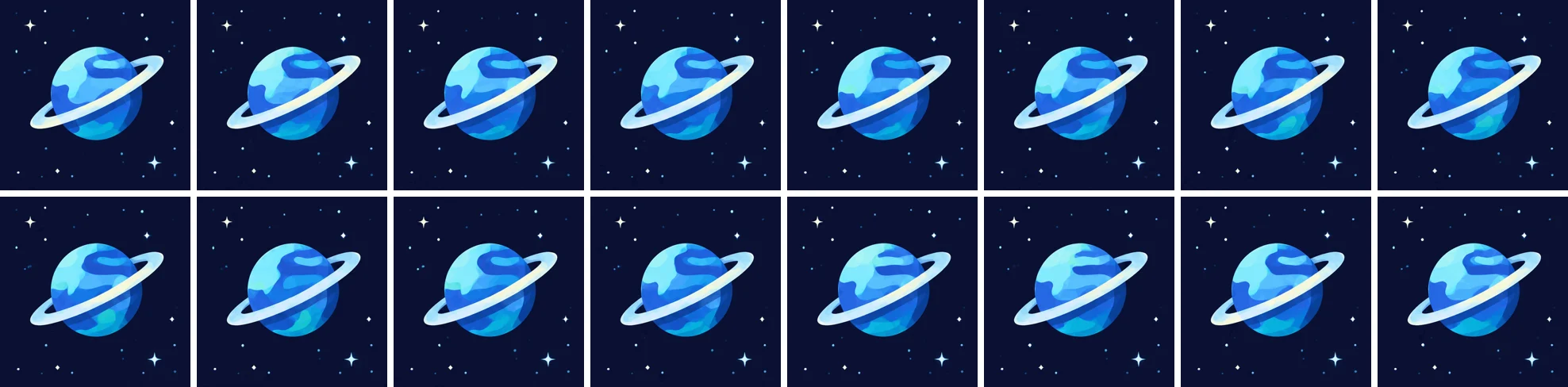
The surface pattern was so even that you can't tell whether it turned. The fix is to give the motion an obvious marker and say where it travels:
Looping GIF animation of a small cartoon planet with a tilted ring, rotating in place on a deep navy starry background.
Flat illustration. A large red crater-spot on the planet's surface clearly travels from the left edge of the planet to the right edge across the frames, so the rotation is easy to see.
The planet and ring stay centered and the same size.
The last frame matches the first frame so the loop is seamless. No text.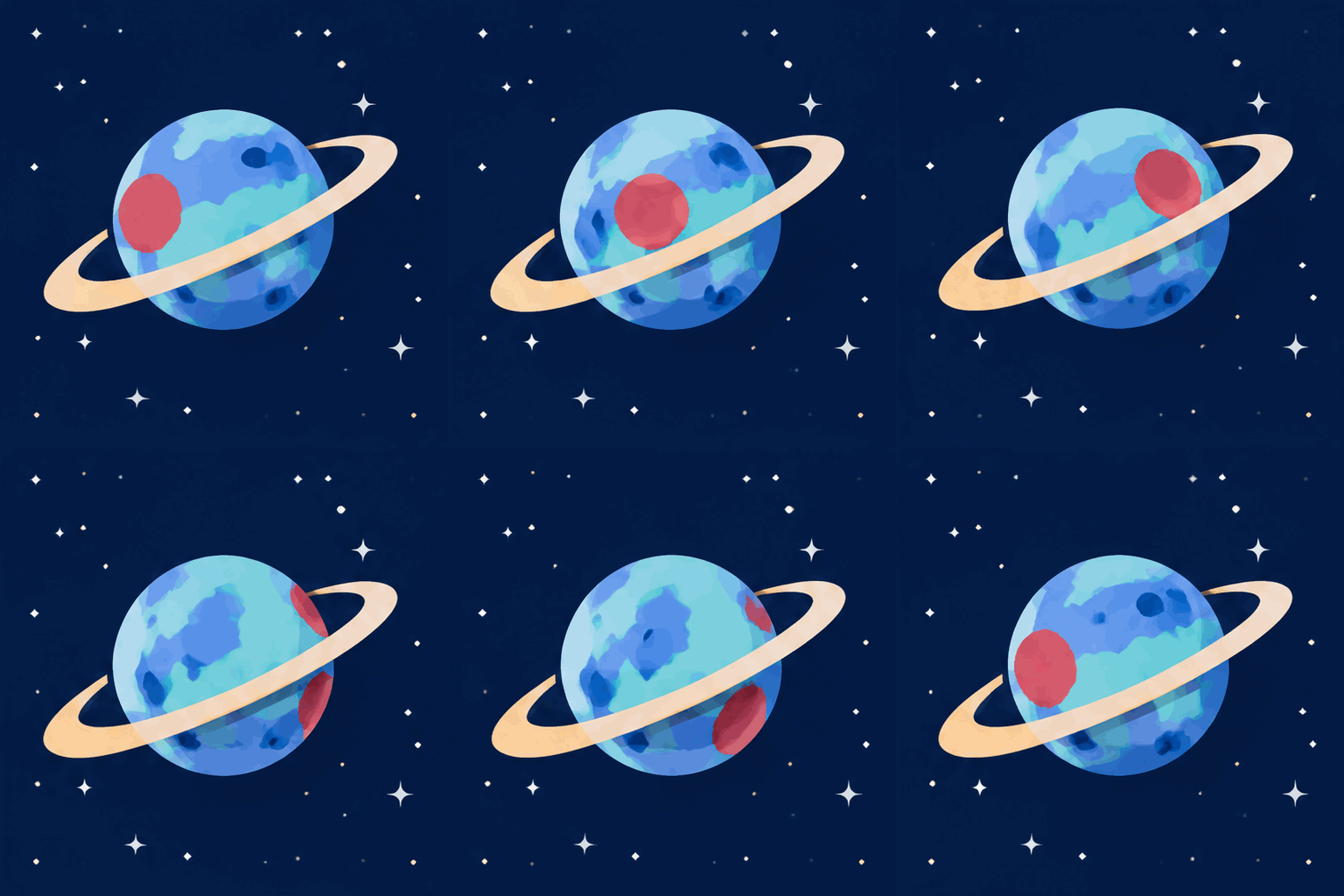
This time the red crater makes a full lap over the 16 frames and the motion is obvious. Strictly speaking it circles around the front of the planet instead of turning behind it, so don't expect physically accurate rotation. For a GIF, "clearly moving" matters more than "moving correctly".
Pitfall 2: Too much scene change breaks the loop
We deliberately tried a hard one: a girl in a red jacket runs from left to right while the camera follows and the background changes from a park to a busy market.

It went better than expected. The girl looks the same in all 8 frames and her running pose flows. The model turned "runs from left to right" into "she stays in the middle while the background moves past", which is what a tracking shot looks like.
The problem is the loop. Frame 8 is the market and frame 1 is the park, so each time the GIF restarts, the background suddenly jumps:
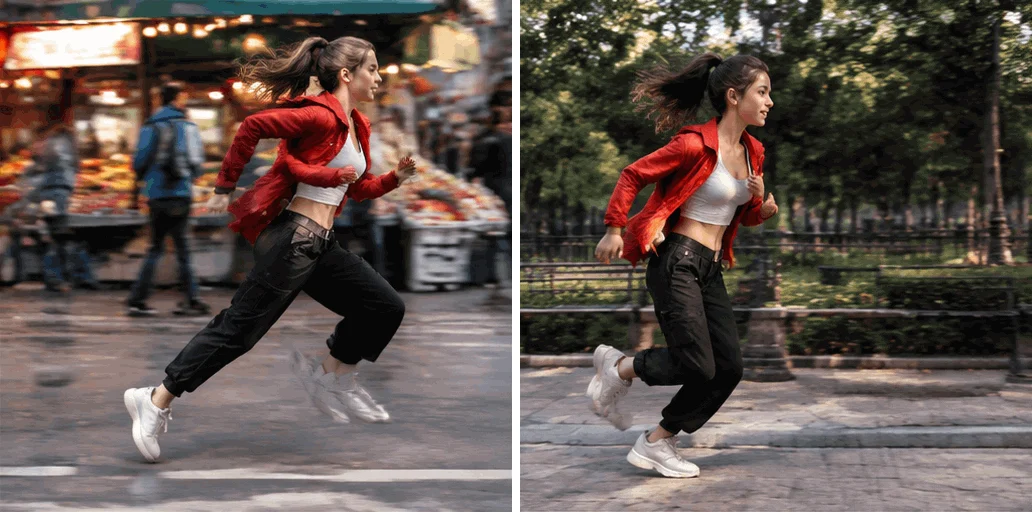
Left: frame 8. Right: frame 1. When the GIF loops, it cuts straight from the left image to the right one.
For a seamless loop you need two things: a fixed scene where the subject moves in place, and a motion that ends where it began. If what you actually want is a short story with a beginning and an end, generate it frame by frame and turn it into a video instead. Our GPT Image 2.5 stop-motion tutorial walks through that.
When not to use GIF output
One-shot GIFs are convenient, but frames are fixed at 512×512, you get at most 16 of them, and you can't redo a single frame. In these cases another route works better:
- You need a bigger or non-square animation: generate a few still images first, then combine them in the GIF Maker, where you control the size and every frame.
- You need to fix individual frames: for a sticker pack, the 3×3 grid method in the sticker pack tutorial lets you redo just one cell.
- You need a transparent background: GIF output can't do transparency. Generate transparent PNGs instead (see the transparent background guide) and assemble the animation yourself.
- You want a full story longer than about 2 seconds: turn a set of images into an MP4 with the Images to Video tool.
Troubleshooting
| Problem | Fix |
|---|---|
| A visible jump when the loop restarts | Add "the last frame matches the first frame" and describe the motion as a round trip |
| The subject changes size or drifts between frames | Add "stays centered and the same size in every frame" |
| It barely moves | Give the motion an obvious marker and say where it travels |
| The background changes too | Say "the background never moves", or use a plain color background |
| Some frames misspell the text | Use one or two short words and ask that "the wording stays exactly the same in every frame" |
| Too fast or too slow | Work out frames × duration before you generate; for an existing result, change the frame duration and generate again |
| You want to use the result as a reference image | GIF results can't be used as reference images; adjust the prompt and generate again |
Wrap-up
GPT Image 2.6's GIF output is best at short loops where the subject moves in place: a waving mascot, steaming coffee, a flickering sign, a bobbing boat. Remember three things:
- Use 8 frames in most cases; it costs the same as 4.
- Write the prompt as a motion that returns to its start, and say what stays still.
- Keep the scene fixed and match the first and last frame so the loop is seamless.
Ready to try it? Open the GPT Image 2.6 page, set Output format to GIF, and paste in any of the prompts above.