GPT Image 2.6 adds SVG (vector) output. Instead of a pixel image you get a vector file: it stays sharp at any size, you can drag it into Figma or Illustrator to recolor or delete parts, and you can drop the code straight into a web page.
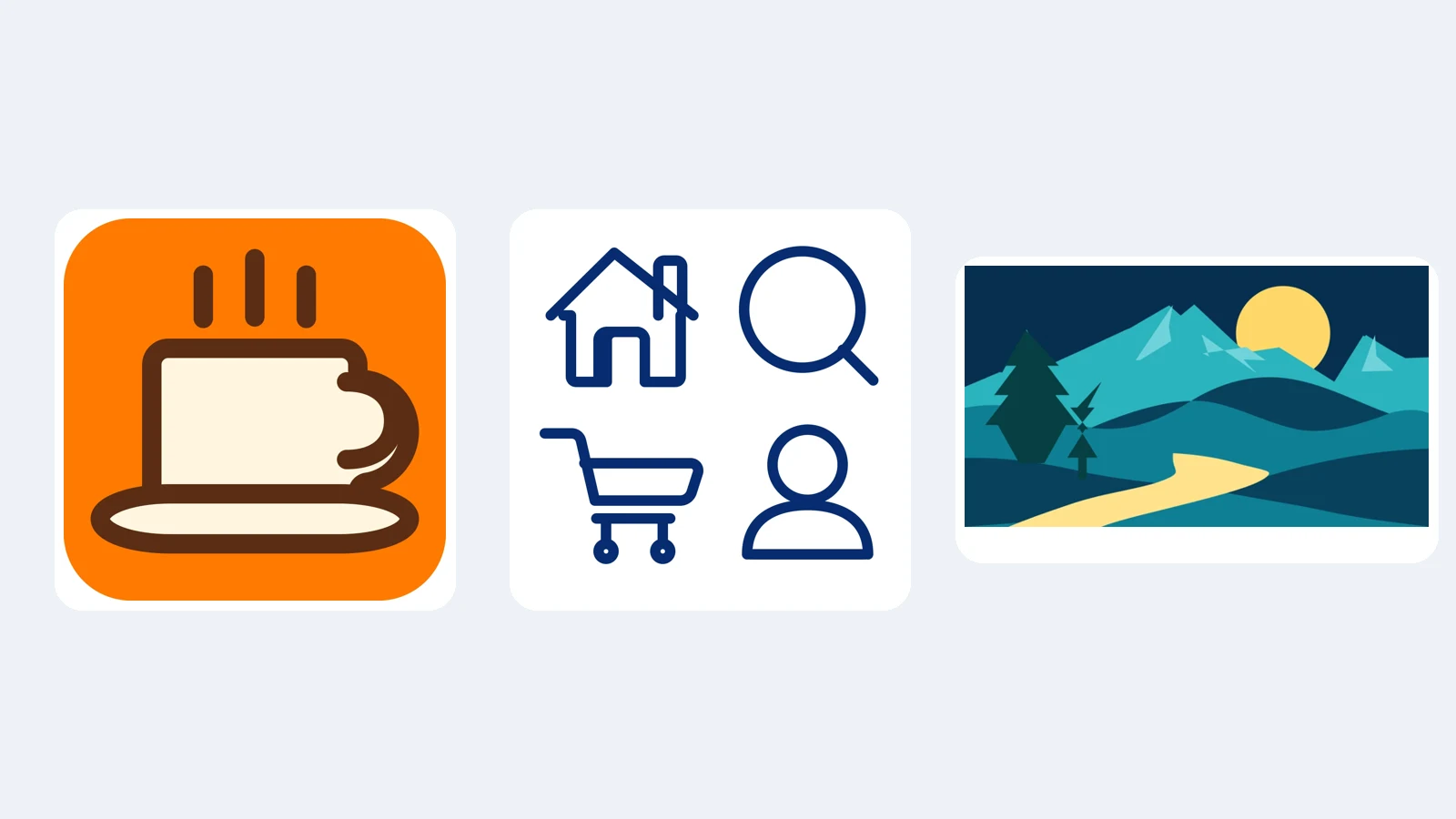
All three are SVGs, and the largest file is under 3 KB.
SVG output is picky about subject matter, though. The same "coffee cup icon" can come out as a tangled mess or as something ready to ship, depending on how you write the prompt. We generated all six examples below ourselves, the good and the bad.
First: how the SVG gets made
GPT Image 2.6 builds an SVG in two steps:
- It draws a normal reference image at 1K.
- A text model then "looks at" that image and redraws it as vector shapes in code.
So the SVG is not a precise trace of the image. It's a redrawing. The simpler the shapes and the fewer the colors, the more faithful the redraw; the more detail and realism, the more it drifts. Every tip below follows from this.
What SVG output can and can't do
| Item | Details |
|---|---|
| Models | GPT Image 2.6 Flare, GPT Image 2.6 Sunburst |
| Mode | Text to Image only; no reference images |
| Resolution | The reference is always drawn at 1K; you choose the aspect ratio |
| Background | The background setting doesn't apply; describe the background in the prompt |
| Quality | Standard, Enhanced, Fine (affects the reference image in step 1) |
| Credits | From 10 / 14 / 16 credits at Standard / Enhanced / Fine |
| Safety | Scripts and external links are stripped before download; only the drawing is kept |
The vector step is billed at actual cost, so the price shown is a minimum, and your balance must be at least twice that minimum to submit. All examples here used Flare at Standard quality. Most finished within half a minute; the badge with lettering took almost 4 minutes.
Step 1: Switch the generator to SVG
- Open the GPT Image 2.6 page and stay in Text to Image mode.
- Set Output format to SVG (vector).
- Pick an aspect ratio: 1:1 for icons, 16:9 for banner illustrations.
- Start at Standard quality.
Example 1: A set of line icons (the best result)
Line icons are practically made for SVG: just strokes, one color, no fills.
A set of four line icons arranged in a 2x2 grid on a white background: a house, a magnifying glass, a shopping cart, and a person silhouette.
Uniform dark navy outlines, rounded line caps, no fill, consistent size and spacing.
Minimal UI icon style. No text.
👉 Try this prompt (then set Output format to SVG)
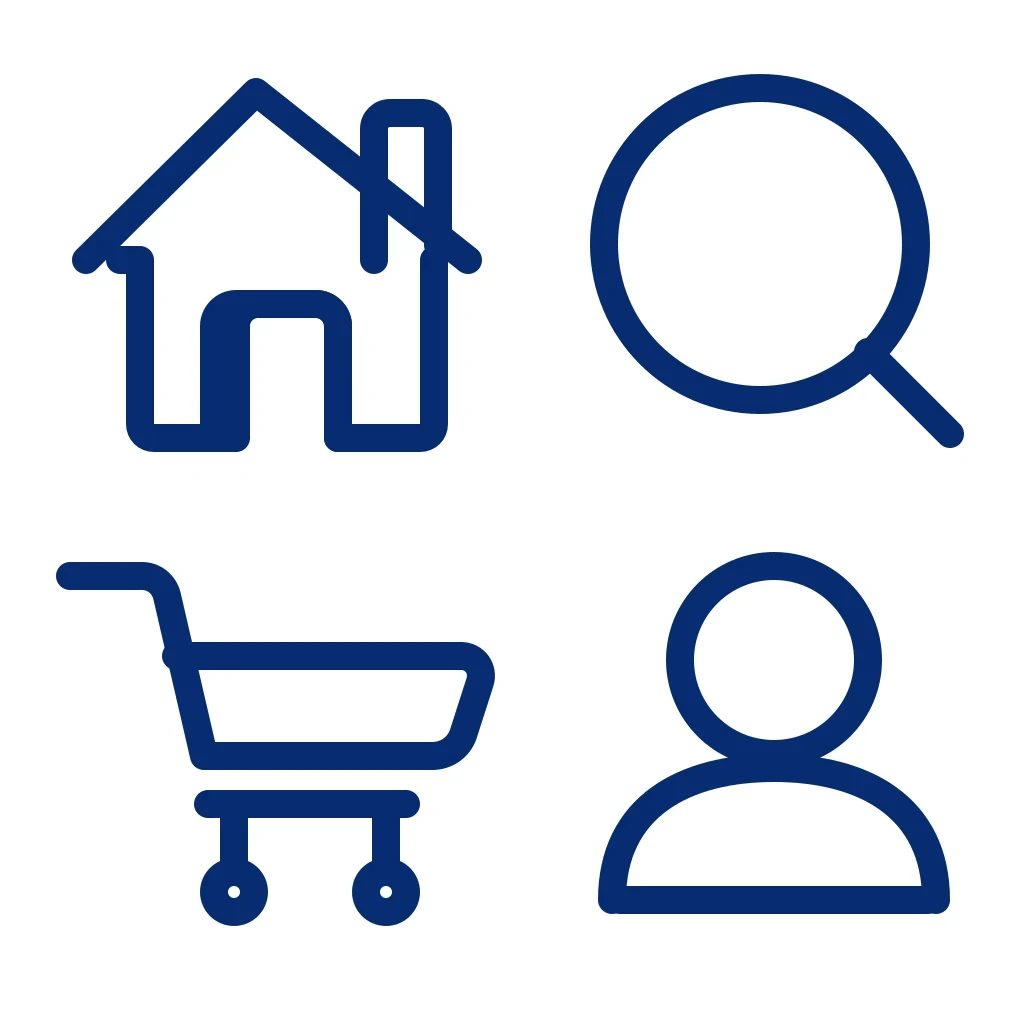
The whole file is 1.5 KB. In the code, all four icons share one set of stroke settings:
<g stroke="#082c72" stroke-width="28" stroke-linecap="round" stroke-linejoin="round" fill="none">
  <circle cx="760" cy="244" r="156"></circle>
  <line x1="868" y1="352" x2="950" y2="434"></line>
  ...
</g>
To change the color or line weight, edit stroke and stroke-width once, and all four icons follow. The only flaw is that the house's chimney line runs through the roof; delete that stray segment in Figma.
All four icons are in one file. Drag it into Figma and ungroup it to export each icon separately.
Example 2: A flat landscape illustration
A flat vector landscape illustration: layered teal and navy mountains, a pale yellow sun, two simple pine trees in the foreground and a winding path.
Limited palette of five colors, large clean shapes, no gradients, no texture.
Wide composition. No text.
At 2.7 KB, the mountains, sun and path keep their layering, which makes it a good fit for web banners, slide backgrounds or article headers. The small pine in the foreground came out a bit odd, a common issue with the redraw step: the smaller the element, the more likely it drifts.
"Limited palette of five colors" matters here. With few colors, each color area becomes one shape, so the structure stays clean and the file stays small.
Example 3: One icon, two prompts
This comparison says the most. Our first prompt:
A flat app icon of a coffee cup with a small heart-shaped steam swirl.
Rounded square background in warm orange, the cup in cream white with a dark brown outline.
Simple shapes, few colors, bold clean outlines, no gradients, no texture. No text.
Then a more "geometric" version that spells out each part as a simple shape and says "no small details":
A minimal flat app icon: a simple coffee cup seen from the side, drawn as one rounded cup shape with a C-shaped handle, sitting on a flat saucer, with three short straight steam lines above it.
Cream-white cup with a thick dark brown outline, on a rounded square in solid orange.
Only three colors, large simple shapes, no gradients, no shading, no texture, no small details. No text.
Left: first prompt. Right: revised prompt.
In the first version, the heart-shaped steam swirl is a detailed curvy shape, and in the redraw it tangled with the cup's outline until it no longer looked like a cup. The revised prompt breaks the cup into "rounded body + C-shaped handle + flat saucer + three straight lines", and the result is clean enough to use as an app icon. It's only 0.9 KB:
<svg xmlns="http://www.w3.org/2000/svg" viewBox="0 0 1024 1024">
  <rect width="1024" height="1024" rx="180" fill="#ff7a00"></rect>
  <g fill="none" stroke="#5a2d14" stroke-linecap="round" stroke-linejoin="round">
    <path d="M374 152v116" stroke-width="52"></path>
    ...
  </g>
</svg>
Change #ff7a00 to your brand color and the background changes; change #5a2d14 and every outline follows.
Failure 1: A badge with curved text
We tried a coffee shop badge: a coffee bean in the middle, "BREW LAB" curved along the top of the ring and "EST. 2026" along the bottom.

The rings are right, but the letters were drawn stroke by stroke, and along the curve they all warped beyond reading. This one was also very slow, almost 4 minutes, and when we tried again the upstream service returned a failure (failed tasks refund their credits automatically).
Our advice: leave text out of SVGs. Generate the shapes without text, then add lettering in Figma or Illustrator with a real font. You can swap fonts freely, and nothing gets misspelled. If you need a finished image with text, use regular PNG output; see the brand kit tutorial.
Failure 2: A realistic photo
Finally, we deliberately tried a realistic portrait: an elderly fisherman with a weathered face and a knitted hat.

The result is a pile of overlapping shapes with no recognizable face, and the file is more than four times the size of the others (12 KB). Lighting, texture and wrinkles can't be expressed with a few dozen shapes. For anything realistic, use PNG, JPEG or WebP output.
What works as SVG
| Works well | Doesn't work |
|---|---|
| Line icons, UI icons | Realistic photos, portraits |
| Flat illustrations, geometric art | Images with lighting, gradients or texture |
| Logo marks without text | Logos and badges with lettering |
| Simple stickers and badge bases | Busy, detailed scenes |
| Web banners, slide backgrounds | Faithfully reproducing a specific image |
Prompt template
A [flat / line / geometric] [icon / logo / illustration]: [the subject, described as simple shapes].
Colors: only [N] colors, [color 1], [color 2]… (hex codes work, e.g. #FF7A00).
Large simple shapes, [thick outlines / no outlines], no gradients, no shading, no texture, no small details.
[Background: solid color / white / none]. No text.
Four rules for SVG prompts:
- Break the subject into simple shapes: "rounded cup body + C-shaped handle" is far more precise than "a cup of coffee".
- Limit the colors: three to five is ideal, and hex codes work. If you don't know your brand's hex codes, pull them from existing artwork with the Color Palette Extractor.
- Say what you don't want: no gradients, no shading, no texture, no small details.
- No text: add lettering later in a design tool.
After you download
- Figma: drag the SVG onto the canvas and ungroup it; every shape can then be recolored or moved.
- Illustrator: use Open or Place to get editable paths.
- Web pages: reference it as an image with
<img src="icon.svg">, or paste the code into your HTML and control colors with CSS. - Removing the background: in our results, the bottom layer was a full-size
<rect>background. Delete it to get a transparent graphic. You can also try asking for "no background" in the prompt (we didn't test this specifically).
GIF and SVG results can't be used as reference images. To change one, either adjust the prompt and generate again, or edit it in a design tool.
Troubleshooting
| Problem | Fix |
|---|---|
| Shapes tangle together and the subject is unrecognizable | Describe the subject as simple geometric shapes and add "no small details" |
| Small elements come out wrong | Use fewer small elements, or fix and delete them in Figma |
| Text turns into garbled shapes | Write "No text" and add lettering in a design tool |
| Too many colors, file too large | Say "only N colors" and "no gradients" |
| You want a transparent background | Delete the full-size <rect> at the bottom of the SVG |
| Not enough balance to submit | SVG is billed at actual cost; your balance must be at least twice the minimum |
| It takes a long time or fails | Images with text and detail are slower and fail more often; failures refund automatically, so simplify the prompt and try again |
Wrap-up
GPT Image 2.6's SVG output draws an image first and then redraws it as vectors, so:
- Line icons, flat illustrations and geometric art work best: a few KB per file, and recoloring means editing one hex code.
- In the prompt, break the subject into simple shapes, limit the colors, and leave out detail and text.
- For realistic photos and badges with lettering, use regular image output instead.
Ready to try it? Open the GPT Image 2.6 page, set Output format to SVG, and start with the line icon prompt above.