GPT Image 2.6: images, animated GIFs and SVG vectors
Describe an image, or upload up to 16 references and mark exactly what to change. GPT Image 2.6 adds animated GIF and editable SVG output, mark-up and select-area editing, and a planning control, on top of the quality tiers and formats you know from 2.5.
GPT Image 2.6 image generator
What GPT Image 2.6 adds
Everything from GPT Image 2.5 is still here: text-to-image, up to 16 references, 13 aspect ratios, up to 4K and transparent PNG/WebP. 2.6 adds four new ways to shape the result.
Animated GIF
Pick GIF as the output format to get a looping animation of 4 to 16 frames at 512×512, each shown for 100 to 500 ms. Accounts that have bought credits can also animate reference images in image-to-image. GIF has no transparency.
Editable SVG vectors
Pick SVG to get a vector file you can open and edit in Figma, Illustrator or a code editor. Start from a prompt or from a reference image such as a logo or icon. The image is drawn at 1K, then rewritten as vector shapes; scripts and external links are stripped before you download it.
Mark up a reference
In image-to-image, draw arrows, circles or notes on the first reference image. The model reads the marks as instructions, so you can circle a cup and write "replace the circled cup with a glass" in the prompt.
Select an area to redraw
Paint over the part of the first reference image you want changed. The model redraws that area and keeps the rest of the picture as it is.
Planning: Quick, Balanced or Thorough
Set how much the model plans the layout and text before it draws. The price is the same at every level: Quick is fastest, Thorough is best for posters and text-heavy layouts.
5 quality tiers, up to 4K
Standard, Enhanced, Fine, Ultra and Extreme at 1K, 2K or 4K across 13 aspect ratios, saved as PNG, JPEG or WebP, with transparent backgrounds for PNG and WebP.
Where the new features help
Each 2.6 feature solves a specific job. Pick the one that matches what you need to deliver.
Animated stickers and reactions
Logos, icons and flat illustrations
Precise photo and product edits
Posters and layouts with text
Flare, Sunburst, or GPT Image 2.5?
GPT Image 2.6 Flare
GPT Image 2.6 Sunburst
When to use 2.5 instead
Create with GPT Image 2.6 in three steps
Describe or mark up
Choose the output
Review and download
Prompt examples for the new features
Animated GIF
SVG icon
Select-area edit
GPT Image 2.6 questions
Still have questions? Email support@image-2.net.
GPT Image 2.6 tutorials
Each tutorial covers one new feature with full prompts and real test results, ready to adapt.
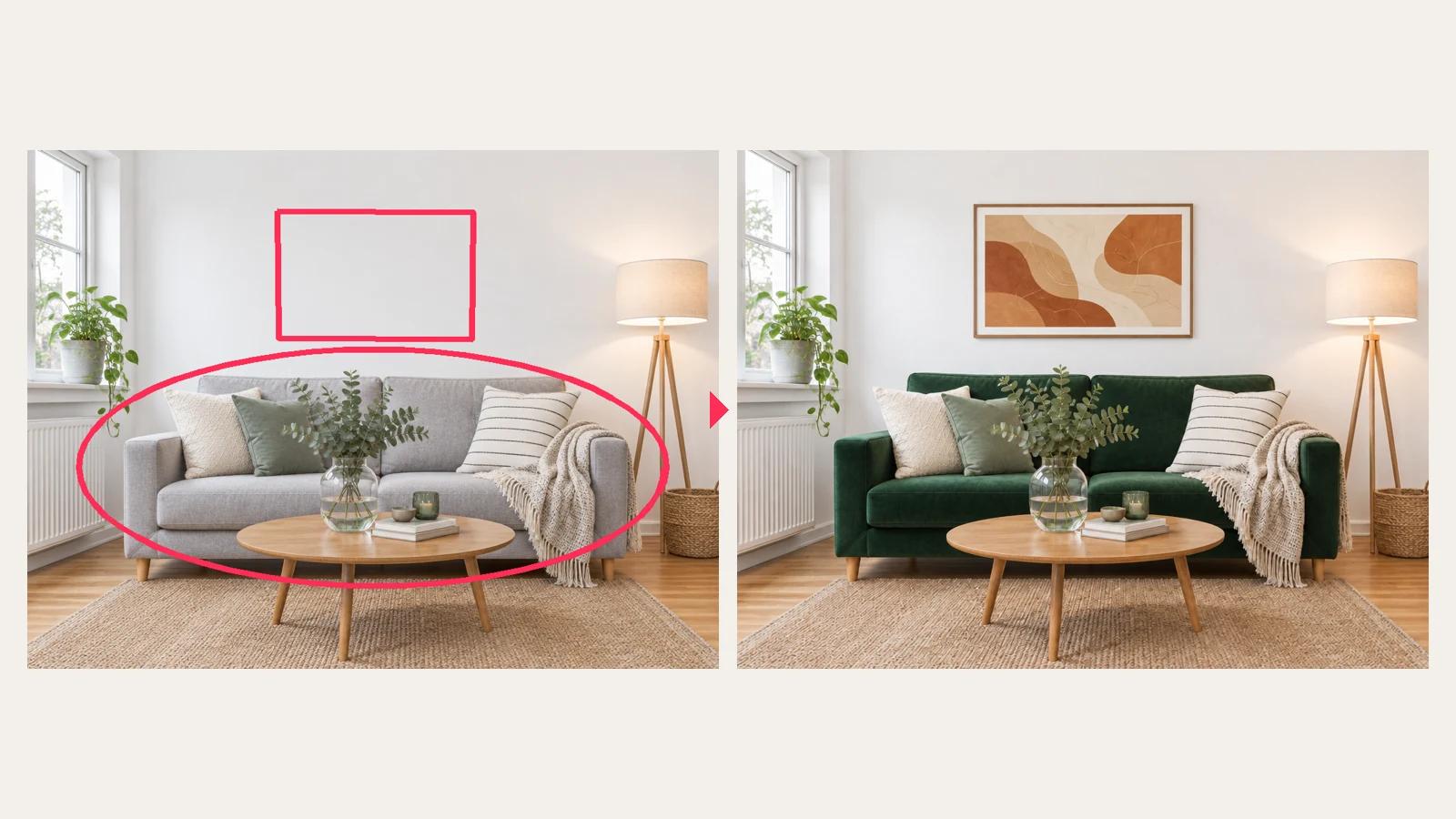
GPT Image 2.6 Inpainting & Markup Tutorial: Change One Thing, Keep Everything Else (Products, Signs, Photobombers)
GPT Image 2.6's Mark up / select area tool lets you paint the region to redraw, or draw circles and boxes as instructions. Five real before-and-after tests show when to use a selection, when to use markup, and the one phrase that makes a selection work.

GPT Image 2.6 SVG Tutorial: Generate Editable Vector Icons, Logos and Flat Illustrations with AI
GPT Image 2.6 can output SVG files that scale without blurring and open in Figma, Illustrator or a code editor. Six real tests show what works as SVG, how to write the prompt, and which images turn into a mess.
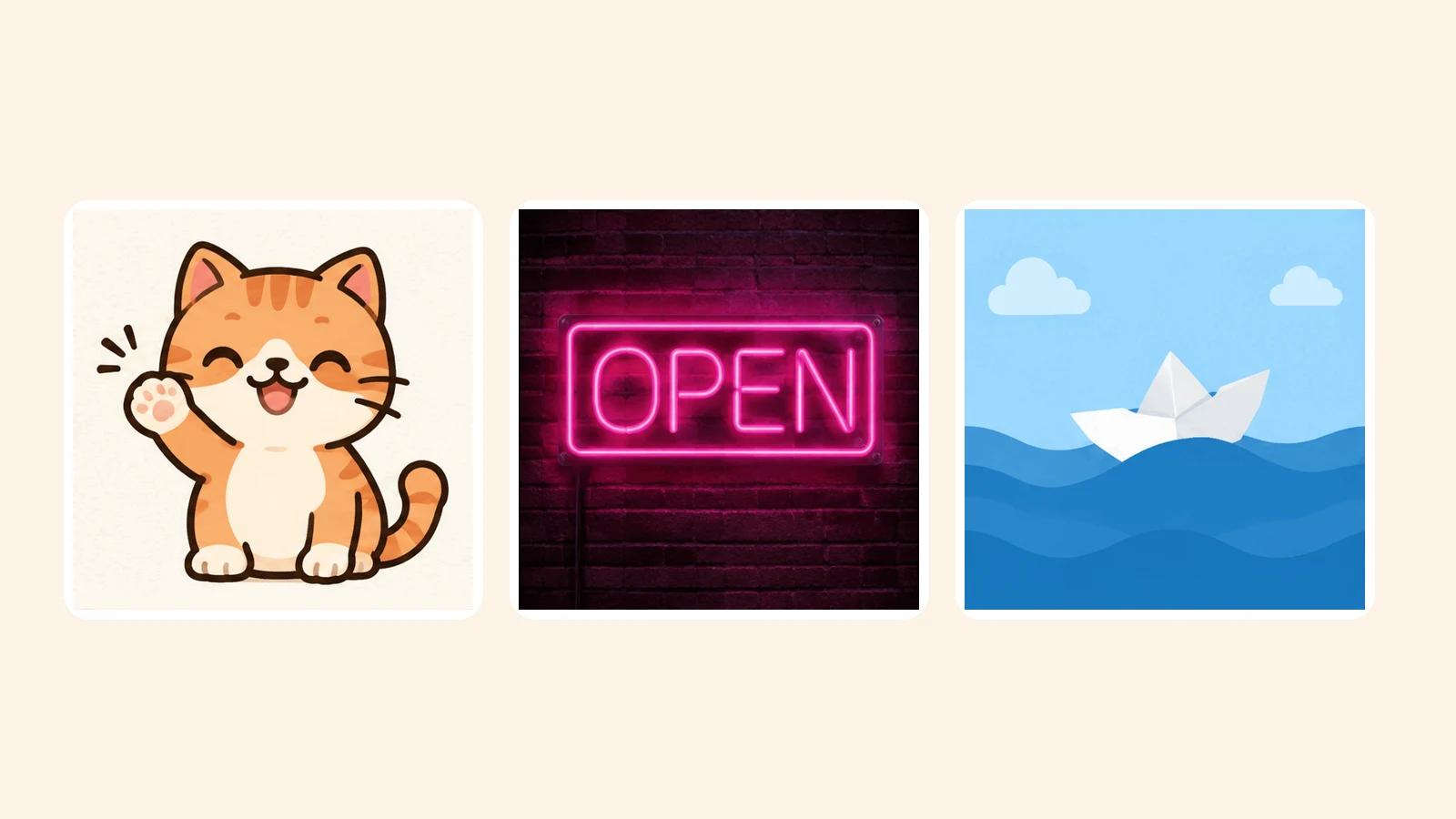
GPT Image 2.6 GIF Tutorial: Make Looping Stickers, Neon Signs and Mini Animations from One Prompt
GPT Image 2.6 can output animated GIFs directly: 4 to 16 frames of 512×512 from a single prompt or a reference image. Eight real tests show how to pick frame count and timing, how to write a prompt that loops, how to animate your own images, and which motions still fall apart.
Try GPT Image 2.6
Start with a still image at Standard, then try a GIF, an SVG or a select-area edit when you need it.