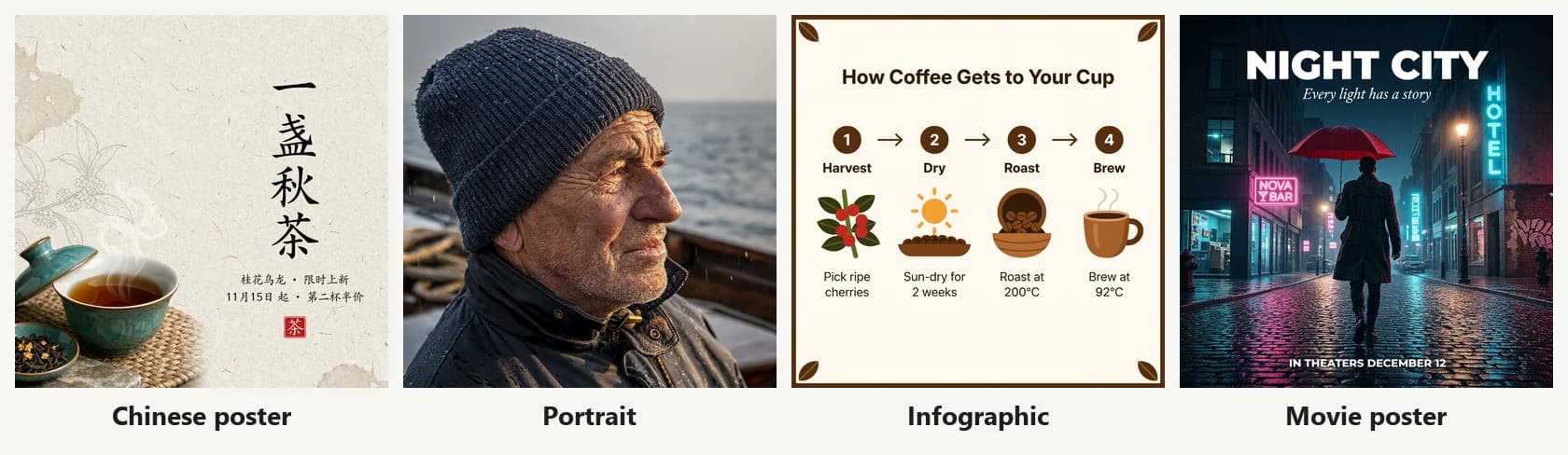
Create and edit images with MiniMax H3 Image

Describe an idea, or upload up to 16 reference images and say what to keep and what to change. MiniMax H3 Image is the image model MiniMax released in November 2026, built for realistic photos, posters, product shots and images with text.

MiniMax H3 Image generator

AI Image Generator
0 / 32,000 characters (Han characters count as 2)
Aspect ratio5 common
Image ratio 1:1, best for avatars, product hero shots, and square social posts.
Output format
Resolution
About 1 megapixel; the model sets the exact size
The model expands your prompt into a detailed description before drawing. Turn it off to follow your wording exactly.
What do you want to create?
Describe it in a sentence, or pick an example below to fill it in

What MiniMax H3 Image can do

Start from a sentence or from your own pictures. Name the subject, the composition and whatever must stay the same, then adjust the prompt once you see a result.

Text to image

Describe the subject, scene, light and style. The model leans towards a photographic look, which suits portraits, still lifes and everyday scenes.

Up to 16 reference images

Upload people, clothing, products or scenes and say what each one is for, such as "dress the person in image 1 in the jacket from image 2, same background".

Prompt enhancement, on or off

On by default: the model expands your prompt into a detailed description before drawing. Turn it off in text-to-image to follow your wording exactly; it is always on when you generate from reference images.

Text inside the image

For a headline, label or sign, put the exact words in quotation marks. Check the spelling letter by letter before you use the result.

13 aspect ratios, 1K to 4K

Thirteen ratios from 21:9 to 9:21, at 1K, 2K or 4K. The model rounds the exact pixels itself: 1:1 at 1K is 1024×1024, and 16:9 at 2K is 2720×1536.

PNG, JPEG or WebP

Choose the output format. A 4K PNG can run past 20 MB per image, so pick JPEG or WebP when the picture is only going on a web page or into a chat.

Places to start

Besides the look, say where the image will be used and how the layout should work.

Realistic portraits and everyday photos

Describe the person, the setting and the light for a picture that looks like it came from a camera. To keep a real person's face, use image-to-image and upload a reference photo.

Product shots

Upload a product photo and try new backgrounds, surfaces and lighting. Say which shapes, colours and details must not change.

Posters and covers

Ask for a clear title area and put the words that should appear in quotation marks. Choose 2K or 4K for print or large displays.

Combining several images

Bring the people, clothing, products and scenes from several references into one picture, and say in the prompt what each image contributes.

Standard or Highspeed

01

MiniMax H3 Image (default)

The standard version, selected on this page. Text-to-image costs 4, 5 and 14 credits at 1K, 2K and 4K, and an image took about 25 seconds in our tests.
02

MiniMax H3 Image Highspeed

The version MiniMax describes as faster, with the same settings as standard. It costs 8, 8 and 26 credits at 1K, 2K and 4K. In our small test the two took about the same time, so start with standard.
03

Compare on your own task

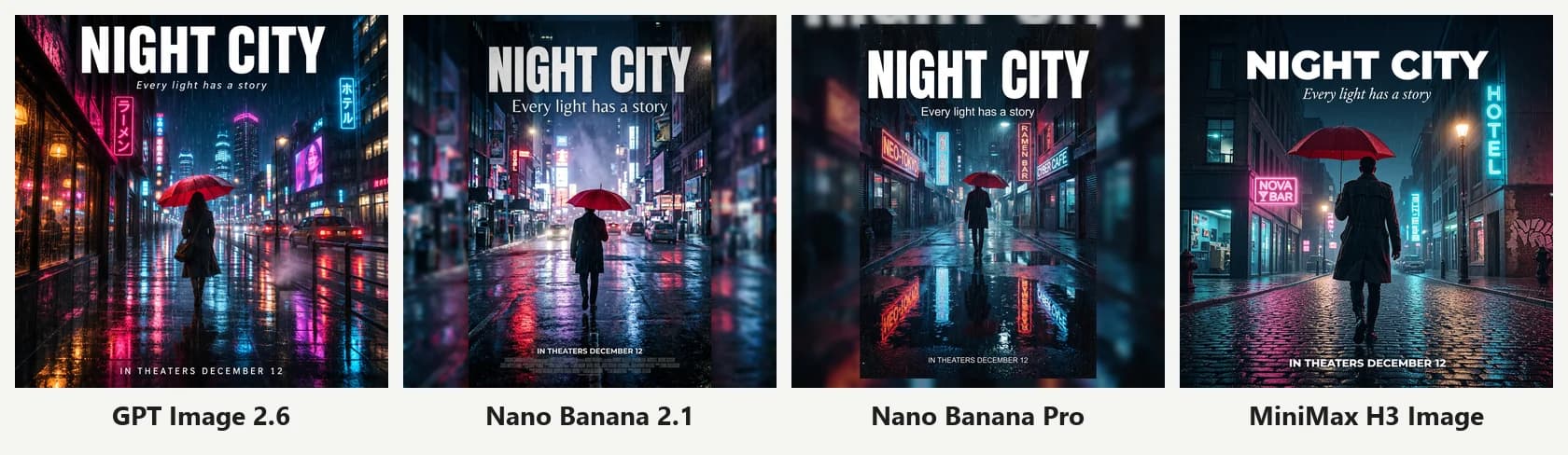
Keep the prompt and settings, switch to another model in the model menu, such as GPT Image 2.6 or Nano Banana, and generate again. Your history shows which model made each image.

Three steps to an image

01

Describe the picture or add references

Sign in and describe the subject, scene, style and composition. With reference images, say what each one is for and what to keep or change.
02

Choose settings and check the credits

Pick the aspect ratio, resolution and output format; the credits are shown before you generate. Try a direction at 1K first, then generate again at a higher resolution.
03

Review, adjust and download

Look at the result, change the prompt and generate again if needed, then download. You can also keep editing from a result.

Prompt examples

01

Realistic still life

Try: A ceramic coffee cup on a wooden table by a window, morning light, a small handwritten card that reads "GOOD MORNING".
02

Poster with text

Try: A wide poster of a city at night, neon signs, wet streets reflecting the lights. Large white letters at the top read "NIGHT CITY", with room for one line of small text at the bottom.
03

Outfit swap

Try: Dress the person in image 1 in the jacket from image 2. Keep the face, hairstyle and background unchanged, and match the original lighting.
Guides

MiniMax H3 Image tests and guides

Real test results with full prompts: how MiniMax H3 compares with GPT Image 2.6 and Nano Banana, and which settings to use.
MiniMax H3 Image FAQ

MiniMax H3 Image is the image generation and editing model MiniMax released in November 2026. On Image2 you can use it for text-to-image and image-to-image, and switch to the GPT Image or Nano Banana models in the same generator.
Standard text-to-image costs 4, 5 and 14 credits at 1K, 2K and 4K; Highspeed costs 8, 8 and 26. Image-to-image starts at the same price and is billed on actual use, so more reference images cost more: standard 1K with one reference came to 7 credits in our test. The credits are shown before you generate, and failed generations are not charged.
Up to 16, each no larger than 10 MB. Say in the prompt what each image is for, so the instructions do not conflict.
When it is on, the model first expands your prompt into a more detailed description, so a short prompt still gives a complete picture. If you have already written a precise prompt and do not want the model to add to it, turn it off in text-to-image. The model requires it when you generate from reference images.
Thirteen ratios: 1:1, 3:2, 4:3, 5:4, 16:9, 2:1, 21:9, 2:3, 3:4, 4:5, 9:16, 1:2 and 9:21, at 1K, 2K or 4K, which are about 1, 4 and 16 megapixels. In image-to-image you can also keep the first reference image's own ratio.
You can choose PNG, JPEG or WebP. This model does not support transparent backgrounds; for those, switch to a GPT Image model in the model menu.
Results appear in the generator and are saved to your history with the model that made them. Download the ones you want to keep.

More questions? Email support@image-2.net.

Try MiniMax H3 Image

Name the subject, scene and composition, then check the credits in the generator.