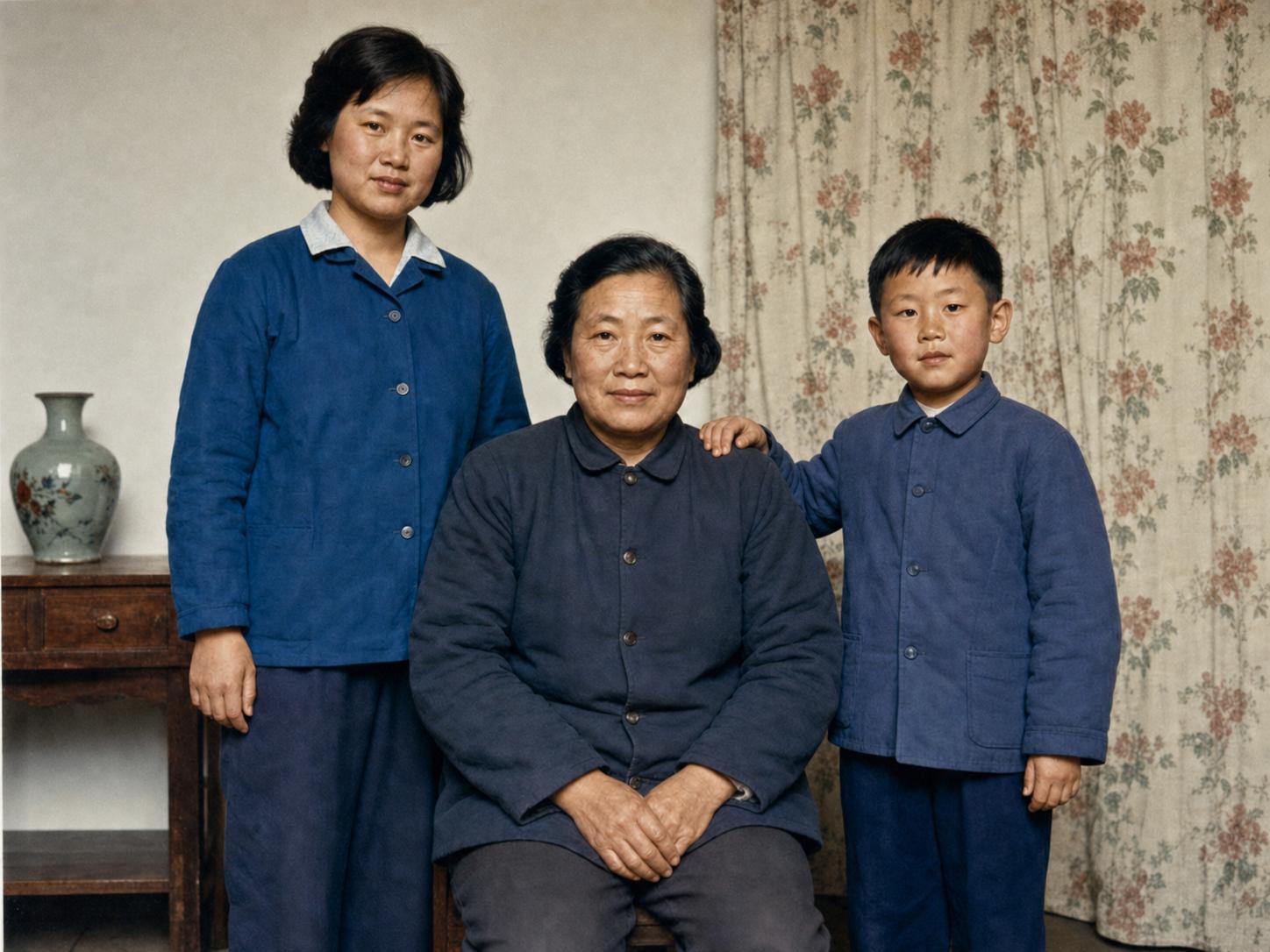
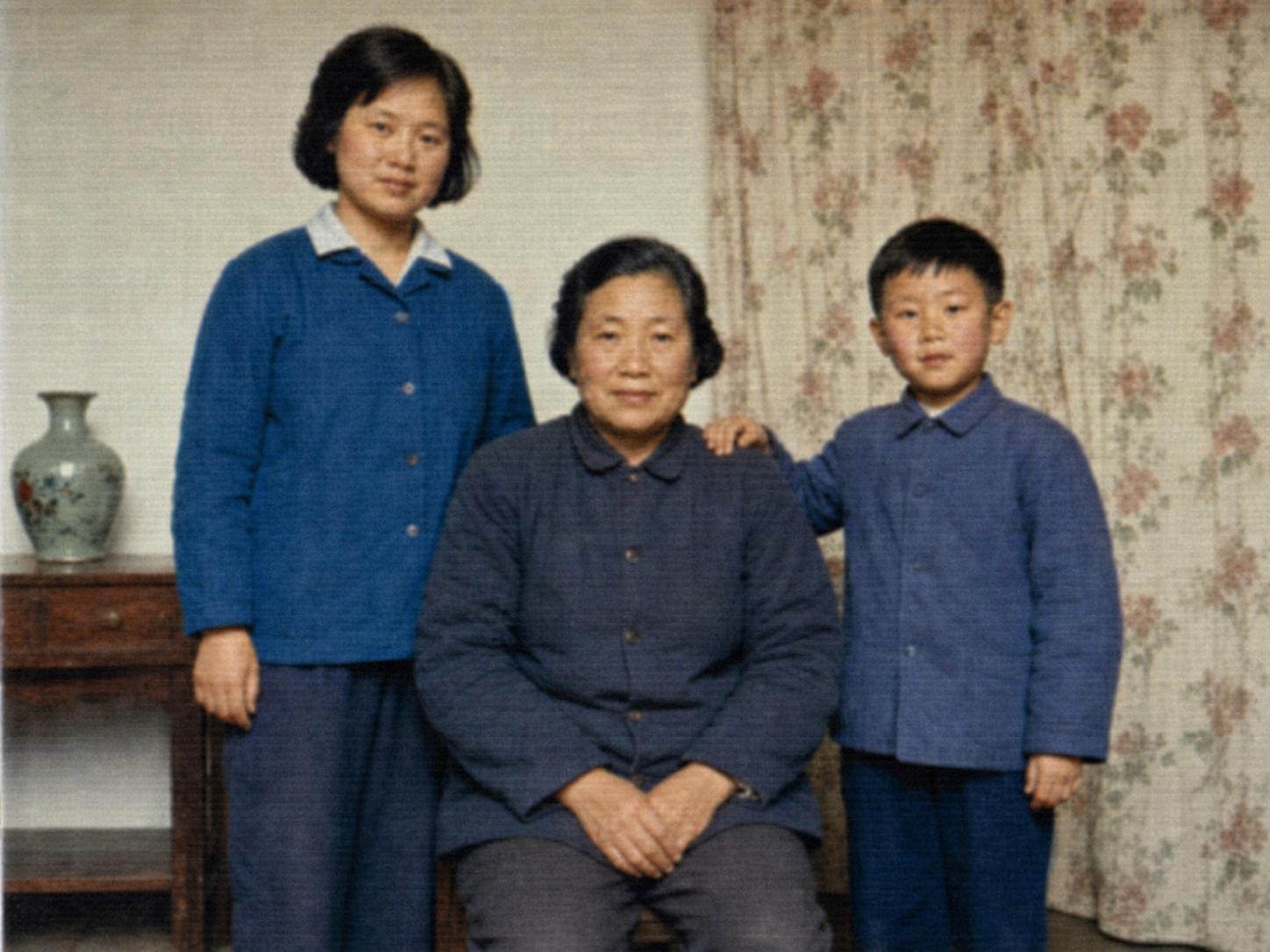
Blurry Old Photo Enhancement
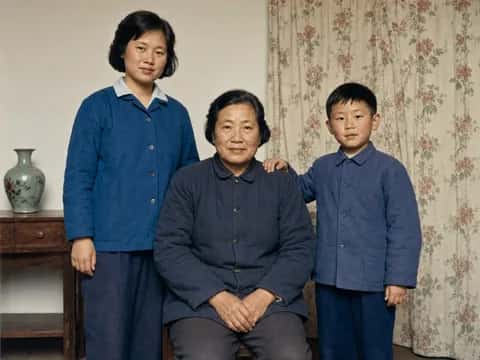
Improve a blurry, low-resolution old photograph with restrained detail recovery and natural sharpening.
Enhance the uploaded blurry, low-resolution old photo. - Reconstruct natural facial detail in the eyes, eyebrows, lips, hair strands, and clothing texture without changing identity. - Reduce blur, noise, compression artifacts, and scan softness. - Improve local contrast and clarity while preserving realistic skin, film grain, and printed-photo texture. - Use [sharpening level: restrained and natural] sharpening with no halos or brittle edges. Keep every person's age, expression, hairstyle, facial proportions, pose, and the original composition exactly the same. Do not beautify, smooth skin, swap faces, or invent unsupported detail.
- Model
- GPT-Image-2
- Aspect ratio
- auto
- Resolution
- 2K
- Best for
- Old photo restoration and colorization
How this prompt is composed — each chip is one phrase. Mix, swap, or remove chips to make the look your own.
- Enhance the uploaded blurry
- low-resolution old photo. - Reconstruct natural facial detail in the eyes
- eyebrows
- lips
- hair strands
- and clothing texture without changing identity. - Reduce blur
- noise
- compression artifacts
- and scan softness. - Improve local contrast and clarity while preserving realistic skin
- film grain
- and printed-photo texture. - Use [sharpening level: restrained and natural] sharpening with no halos or brittle edges. Keep every person's age
- expression
One click to remix this prompt with a different look or aspect ratio.
You may also like
More templates in the same style
Frequently asked questions
Which AI model is used?
All templates on this page are designed for and tested with GPT-Image-2. You can copy the prompt and run it elsewhere, but quality and text rendering may vary on other models.
How does the Remix button work?
Clicking Remix opens our generator with the prompt, aspect ratio, and resolution prefilled. You can edit any part of the prompt, swap the size, or rerun the generation as many times as you like.
Why does my generation look different from the preview?
Every run is a fresh generation — variations in composition, lighting, and detail are expected. To stay closer to the preview, keep the prompt verbatim, lock the same aspect ratio, and run a few seeds.
Can I tweak the prompt?
Absolutely — that's the point. Use the Prompt structure card below to see how the prompt is composed, then add, remove, or swap phrases to dial in your own look.